
Getting More Out of Two Screens: A Practical Guide for Busy Professionals
You added a second monitor to your desk a few months ago. It seemed like a great idea at the time. But most days you find yourself working mostly on one screen, occasionally glancing at the other, and not really feeling the benefit you expected. The setup is there - it just isn't working the way you hoped.
That experience is more common than you'd think. Research from Jon Peddie Research suggests dual monitors can lift productivity by up to 42%, but only when the setup is actually configured to support the way you work. The hardware alone doesn't do it. Most people who feel underwhelmed by two screens are dealing with a positioning or settings problem, not a hardware problem.
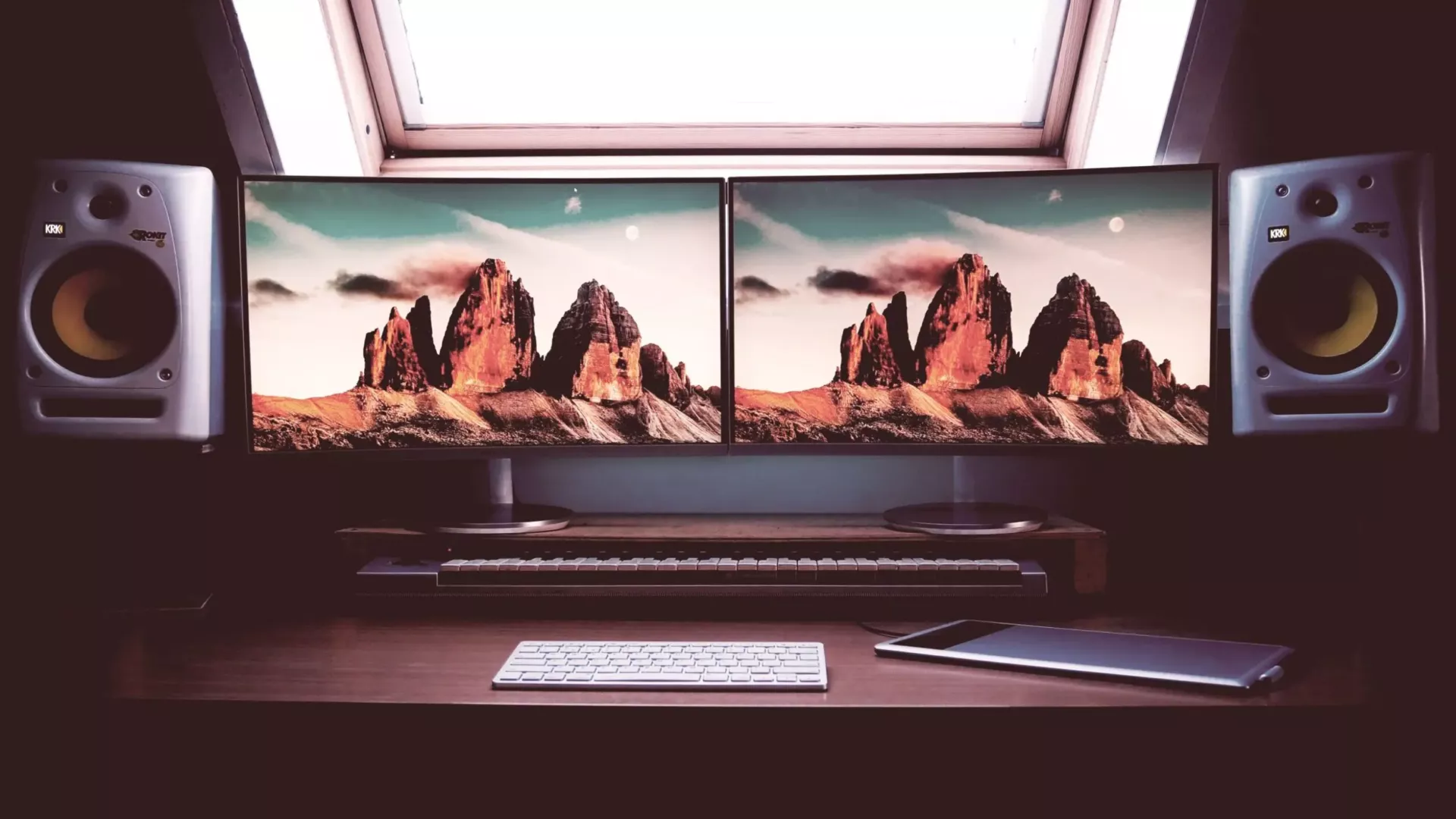
The most common mistake is mirroring both screens so they show the same thing. That doubles your screen space without doubling your output. What you want is an extended desktop - two separate workspaces where different applications live. In practice, this means your document or case file on one screen and your email, calendar, or reference material on the other. You stop switching between windows and start actually working in parallel.
The other thing that makes a real difference is where the screens sit relative to each other and to you. Top edges should be aligned, the screens angled slightly inward, and the whole setup at eye level. If you're craning your neck to read one screen or leaning forward to see the other, you'll feel it by mid-afternoon. Ergonomics isn't a luxury consideration - it affects how long you can work comfortably and how much you actually use the second screen. A well-configured workspace for your whole team compounds these gains further.
Windows has a few settings worth adjusting once you have the physical setup right. Setting your taskbar to show only the applications open on each screen - rather than everything on both - removes a lot of visual clutter. The keyboard shortcut Windows key plus left or right arrow snaps applications neatly to one side of any screen, which is useful when you want to compare two documents or work from a reference while you write. Small adjustments, but they add up over the course of a day. There are also several Windows 11 settings worth enabling that make managing multiple screens noticeably smoother.
If you're handling client files, case notes, or financial records across two screens, it's also worth making sure your privacy and display settings are appropriate for your environment. A second screen angled toward a waiting area or open door is a compliance issue as much as a comfort issue - the NZ Privacy Act 2020 requires that personal information is handled with reasonable care, and that includes who can see it.
Getting the setup right from the start saves time and frustration later. If your team is moving to dual monitors or you've had them for a while without feeling the benefit, an ITstuffed engineer can sort the configuration, cable management, and display settings in a single visit - alongside any other hardware or software questions you've been putting off. This is exactly the kind of hands-on work that IT support for professional services firms is designed to handle. If you're unsure whether your devices are set up to support the way you work, that's a good place to start.
If you'd like to talk through your current setup, book a 15-minute IT Fit Check with ITstuffed and we'll give you an honest picture of what's working and what isn't.